Conditions of switches depending on times
You have the option of displaying elements depending on elapsed playing time or specific dates, times or days of the week.
Content
For example, you can set the element to only be displayed after April 12, 2023 and only on Thursdays between 12 p.m. and 3 p.m.
- First open or create the desired element
- Then click on the Switch menu tab
- Activate the switch and click on Add condition
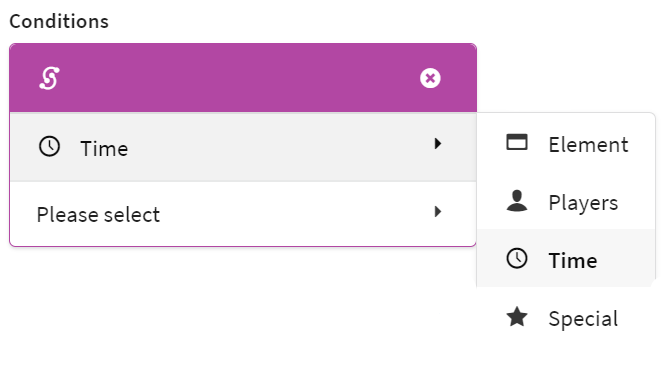
- Select Time and the desired function
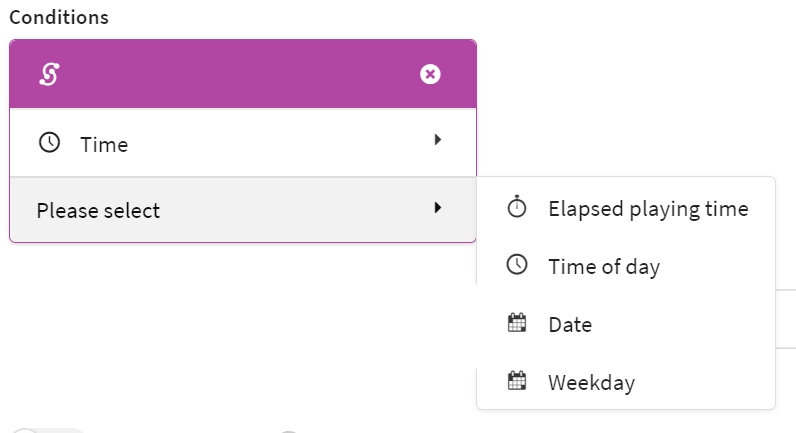
The item is displayed in the Bound if more (Longer than) or less (Shorter than) of the playing time X you have set has elapsed.
Hint If you want to define a time span, create two conditions, one Shorter than, one Longer than and select All conditions must apply.
The element is displayed in the Bound if it is before or after a certain time.
Hint If you want to define a time period, create two conditions, one after X clock, one before X clock and select All conditions must apply.
The item is displayed in the Bound when Before, After or On a specific date is played.
Hint If you want to define a time period, then create two conditions, one After X clock, one Before X clock and select All conditions must apply.
The item is displayed in the Bound if it is played on a certain day of the week (is) or not on a certain day of the week (is not).
For example, if you want to display the item only on weekends, create two conditions, one for is Saturday and one for is Sunday and select at least one condition must apply.